
Walking into a meeting room with a presentation remote in hand changes the entire dynamic. You stop being the person frozen behind a laptop and start being the guide leading the conversation, slides advancing at your pace while you walk, gesture, and make eye contact. The right computer remote control turns PowerPoint, Google Slides, or Keynote into a natural extension of your voice rather than a barrier between you and the room.
A Fast Comparison Of The Options

Logitech Wireless Presenter R400 with Case

UBUYONE Wireless Presenter Remote & Red Laser

DinoFire USB Type C Presenter Remote with Volume

VILNIU Presentation Clicker for PowerPoint
Logitech R400 USB A PowerPoint Clicker with Laser

DinoFire Wireless Presenter with Hyperlink Volume

DinoFire BT&RF Dual Modes Presenter Clicker
Taking A Closer Look At The Options
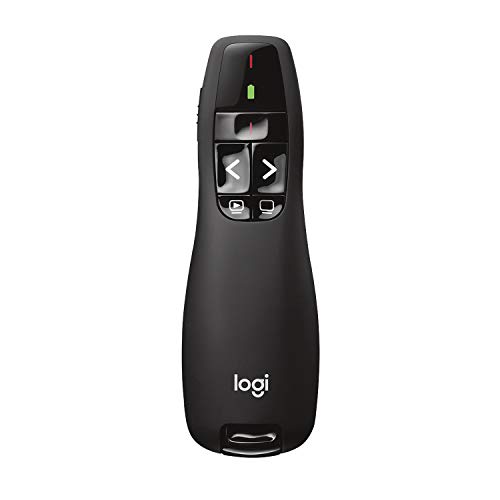
The Logitech R400 has earned its place in countless meeting rooms because it focuses on the basics and gets them right. You get a slim black remote with contoured touch-keys for forward, back, blank screen, and a built-in red laser pointer that stays bright against most projected backgrounds. The 50-foot wireless range gives you enough freedom to walk toward the screen without losing connection, which matters when you want to circle back to a specific slide detail.
Setup is genuinely effortless: plug the USB receiver into your laptop and the remote is recognized within seconds. No software to download, no pairing rituals. Compared to the UBUYONE pick later in this list, the Logitech sacrifices some laser reach but trades it for a more polished build and a sturdier feel in the hand. For office presenters who need dependable day-in, day-out performance, this one earns its reputation honestly.
Features That Help
- Plug-and-play USB receiver means you can walk into any meeting and be ready in seconds.
- Contoured touch-keys let you advance slides without looking down, which keeps your eyes on the audience.
- Red laser pointer stays visible on most projector backgrounds and even on lighter walls.
- 50-foot wireless range gives you room to move from the podium to the screen.
Things To Consider
- Requires AAA batteries, so keeping a spare set nearby is smart for back-to-back presentations.
- The carrying case is protective but adds bulk to your laptop bag.
Feature Snapshot
Who It Suits Best
Office presenters who want a familiar, dependable remote for routine meetings in medium spaces.
Where Another Pick Suits Better
Presenters working in very large lecture halls should consider the UBUYONE Wireless Presenter Remote, whose longer laser reach handles bigger rooms better.
The UBUYONE Wireless Presenter Remote focuses on range, and the numbers it puts on the spec sheet are eye-catching. You get roughly 98 feet of slide-control range and a red laser that reaches across much larger distances, which makes it a sensible choice for lecture halls, training rooms, and any space where the screen sits far from the speaker. The included carrying case is a thoughtful touch for people who toss their gear into a backpack between gigs. The trade-off shows up in feel and finish: the plastic body is functional but less refined than the Logitech R400’s textured shell, and the button layout takes a little more practice to find by touch. For presenters who value reach and want volume control without paying for premium branding, this one delivers more than its modest asking typically suggests.
Good Reasons To Consider
- Long laser range lets you highlight details from across a large room.
- Volume control on the remote means you don’t need to walk back to your laptop.
- Carrying case included for travel between presentation venues.
- Plug-and-play USB receiver keeps setup minimal.
Worth Noting
- Button layout is slightly more crowded than the Logitech, which may slow first-time users.
- Body plastics feel lighter than premium remotes, so a drop from desk height may show wear.
Key Specs
Made For
Speakers presenting in large classrooms, lecture halls, or training centers who need maximum laser reach.
Consider Something Else When
You mainly present in small conference rooms, where the Logitech Wireless Presenter R400’s tighter footprint and proven build make more sense.
The DinoFire USB Type C Presenter Remote solves a problem that increasingly frustrates modern presenters: most laptops no longer ship with USB-A ports. This remote packs both USB-A and USB-C connections into a single dongle, so you can switch between an older PC at a client site and a newer MacBook at your home office without scrambling for adapters. Beyond connectivity, it adds volume control, hyperlink support, and window switching to the usual forward/back and laser functions. That extra button density turns a basic presenter into a deck-orchestration tool, especially in demos where you jump between live apps and a slide deck.
The trade-off is button count. Where the Logitech R400 keeps things simple with four keys, the DinoFire adds enough controls that you’ll want a few practice runs before a high-stakes presentation. The red pointer stays readable on most screens, though on a sunny window-lit wall you may find it less vivid than the UBUYONE’s beam.
Key Advantages
- Dual USB-A and USB-C connectivity removes the need for adapters on modern laptops.
- Hyperlink control lets you jump to specific slides in non-linear presentations without clicking through.
- Window switching is helpful when toggling between a live demo and supporting slides.
- Plug-and-play setup skips driver installation entirely.
Trade Offs
- More buttons on the face mean a longer learning curve than four-button remotes.
- Owners commonly report the dual-mode dongle is small enough to lose in a laptop bag.
Right Fit For
Presenters using modern USB-C laptops who want full deck control plus volume and hyperlink access.
Look Elsewhere When
You want the simplest possible experience, in which case the Logitech Wireless Presenter R400 remains the easier choice for first-time users.
The VILNIU Presentation Clicker earns its place through ergonomic comfort, which matters more than people expect during back-to-back sessions. The body shape sits naturally in the hand, so your grip doesn’t cramp during a workshop that runs three or four hours long. Range lands in the same neighborhood as the UBUYONE: roughly 98 feet of slide-control reach with a red laser that pushes out to around 328 feet, so the room-size flexibility is genuinely useful for trainers moving between small breakout rooms and bigger auditoriums. You get forward and back slide control, a laser, and screen blackout for shifting attention back to yourself mid-talk.
The catch is software depth. This remote focuses on the essentials rather than hyperlink jumping or window switching, so presenters running complex multi-app demos may want the DinoFire USB Type C model instead. For slide-driven talks where comfort matters across long days, the VILNIU hits a comfortable middle ground.
Where It Excels
- Ergonomic shape reduces hand fatigue during multi-hour workshops.
- Strong combined range covers both small conference rooms and larger halls.
- Red laser remains usable on most projector screens and lighter walls.
- Screen-blackout button helps redirect audience attention to your voice.
Points To Note
- Lacks hyperlink and volume controls, so complex demos require laptop access.
- Button labels can be hard to read in dim presentation lighting without a quick learning curve.
Best Suited To
Workshop facilitators running slide-heavy sessions where ergonomic grip matters more than advanced deck controls.
A Better Fit Elsewhere
Presenters who jump between live apps and slides during demos should consider the DinoFire USB Type C Presenter Remote, whose extra controls handle non-linear navigation.
Logitech’s R400 returns in this slot as the standalone USB-A edition, and it remains the benchmark for uncomplicated presenting. The contoured touch-keys fall naturally under your thumb, the bright red laser reads well across most backgrounds, and the 50-foot range covers standard conference rooms without forcing you back to the laptop. There are no buttons to memorize beyond forward, back, blank screen, and laser, which makes it a forgiving choice for presenters who rarely handle tech gear. Where it differs from the earlier R400 listing is packaging: this version focuses purely on the clicker and USB receiver without an extra carrying case, which suits people who already have a dedicated gear pouch.
The honest read is that this remote trades features for focus. There is no volume control, no hyperlink jumping, and no USB-C support, so presenters running complex demos on modern laptops should look at the DinoFire dual-mode remote instead. For teachers, trainers, and anyone running linear slide decks, though, the R400 continues to earn its reputation honestly.
What It Does Well
- Minimalist four-button layout is approachable for first-time presenters.
- USB-A receiver plugs straight into older and current laptops alike.
- Red laser stays readable against most projected backgrounds.
- 50-foot range handles typical conference and classroom spaces.
Honest Caveats
- USB-A only, so newer USB-C-only laptops need an adapter.
- AAA batteries need occasional swapping for power presenters.
Quick Facts
Who Will Love This
Teachers, trainers, and anyone running linear slide decks in typical office or classroom spaces.
Skip It When
You present from a USB-C-only laptop, in which case the DinoFire USB Type C Presenter Remote avoids the adapter hassle.
The DinoFire Wireless Presenter earns its slot by stacking genuinely useful controls onto a familiar RF 2.4GHz remote. That frequency band, common to wireless keyboards and mice, tends to behave well in office environments full of Wi-Fi noise, and in our view gives the connection a stable feel during long teaching sessions. You get forward and back navigation, full and black screen toggles, hyperlink support, window switching, and volume control, all from one compact body. The USB receiver tucks neatly into the bottom of the remote for storage, which solves the “where did the dongle go” problem that plagues many presenter remotes.
It is USB-A only, so USB-C-only laptop users will still want an adapter or the newer DinoFire model covered later in this list. Body feel is functional rather than refined, but for the feature set you receive, the trade-off feels fair.
The Good Stuff
- Hyperlink support lets you move through non-linear decks without touching the laptop.
- Volume control on the remote avoids walking back during video clips.
- USB receiver stores inside the remote body for safer transit.
- RF 2.4GHz connection stays stable in Wi-Fi-dense offices.
Small Caveats
- Plastic shell feels less premium than the Logitech R400’s textured finish.
- USB-A only, which adds friction for USB-C-only laptop owners.
Built With In Mind
Classroom slideshow presenters who need extra controls like hyperlink and volume without moving to a higher tier.
Reach For A Different Pick When
You need USB-C support out of the box, in which case the DinoFire USB Type C Presenter Remote is the smoother pick.
The newest DinoFire entry earns its place by solving a problem the others don’t: how do you present from a device that has no USB port at all? This remote pairs over Bluetooth or uses the included RF 2.4GHz dongle, and you switch modes with a single button on the body. That flexibility matters for presenters juggling conference-room PCs, personal MacBooks, and the occasional tablet, all without keeping a drawer full of adapters. The remote enters sleep mode automatically after roughly 30 seconds of inactivity to preserve battery, which is a thoughtful touch for anyone who forgets to power things down between sessions.
There is no dedicated power button, so waking the remote requires pressing any control, which can occasionally advance a slide if you are not careful. Owners commonly report a brief pairing dance the first time they connect to a new device, but once paired, the connection holds reliably. For multi-device presenters, this is the most flexible option in the roundup.
Practical Pluses
- Bluetooth and RF dual modes let you present from virtually any laptop or desktop.
- Automatic sleep mode extends battery life between sessions.
- No dongle required in Bluetooth mode, freeing up USB ports.
- Mode-switching button keeps transitions between devices fast.
Potential Drawbacks
- No dedicated power button means waking the remote can occasionally trigger a button press.
- First-time Bluetooth pairing takes a few extra seconds compared to plug-and-play receivers.
Technical Highlights
Perfect Match For
Multi-device presenters who switch between personal laptops, conference-room PCs, and shared hardware throughout the week.
Another Choice May Suit
You primarily present from one USB-A laptop, where the simpler DinoFire Wireless Presenter is a more economical choice.
Picking A Presenter That Matches Your Style
Matching the remote to the room is more important than chasing the longest spec sheet. In a small conference room, a 50-foot range covers far more than you need, and a four-button layout keeps your thumbs honest. In a lecture hall or large training room, the longer laser reach of remotes like the UBUYONE becomes genuinely useful, because you can highlight a chart detail from the back row without walking closer to the screen.
Connectivity matters more than people expect. USB-A remotes still work with most office PCs, but a growing share of newer laptops ship with USB-C only or no USB-A ports at all. If you present from a modern MacBook or a slim Windows ultrabook, choosing a USB-C or Bluetooth-capable remote saves you from carrying an adapter you will inevitably forget on the day of the talk.
Comfort and button layout are underrated considerations. A presenter running a one-hour meeting barely notices ergonomics, but trainers and lecturers holding a clicker for three or four hours start to feel the difference between a contoured grip and a flat plastic shell. Likewise, presenters running linear slide decks rarely need hyperlink support, while trainers toggling between live demos and slides benefit from the extra controls.
Laser color is worth a beat of thought. Red lasers are standard and cost-effective, and they show up clearly on most projector screens. In brightly lit rooms with high ambient light, however, a green laser (not in this roundup but worth knowing) remains more visible. For most office and classroom environments, red is the practical pick.
What To Watch Before You Buy
Pitfalls Shoppers Hit
The most common misstep is buying a remote based on range alone, then realizing the body is too small for comfortable long-session use. A second pitfall is assuming every remote works with every laptop, especially with modern USB-C-only machines where USB-A dongles need an adapter. A third is overlooking button layout, which only becomes obvious after a few real presentations, not in the box.
When Paying More Pays Off
Higher-tier models in this category tend to add useful extras rather than cosmetic ones. Bluetooth plus RF dual-mode connectivity, for instance, removes adapter dependency and lets you present from virtually any device. Hyperlink and window-switching controls turn a basic clicker into a real deck-orchestration tool. Volume control on the remote itself is a small upgrade that pays off every time you want to mute a video clip without walking back to the laptop. If your presentations involve live demos, multi-app workflows, or frequent device swaps, the extra spend earns itself back fast.
Frequently Asked Questions
Do presentation remotes work with all slide software?
Most remotes in this roundup support PowerPoint, Google Slides, and Keynote natively through standard keyboard commands, though a few advanced features like hyperlink control work more reliably in PowerPoint than in alternative apps.
How far can a typical computer remote control reach?
RF-based remotes commonly reach 50 to 100 feet for slide control, and red lasers can extend further, though visibility drops with distance and ambient light.
Are USB-C remotes worth the extra cost?
For owners of modern laptops without USB-A ports, USB-C or Bluetooth remotes eliminate the daily friction of adapters, which most presenters find well worth the modest upgrade.
Can I use one remote across multiple laptops?
RF dongles work as long as the receiver is plugged in, while Bluetooth remotes can pair with several devices and toggle between them, making the dual-mode DinoFire especially flexible for shared hardware.
Do presentation remotes need batteries?
Most do, typically AAA cells, though a few newer models use rechargeable batteries or enter sleep modes automatically to extend runtime between charges.
Closing Remarks
The right computer remote control quietly disappears into your hand and lets the talk do the talking. Match the connectivity to your laptop, the range to your room, and the button layout to your style, and any of the picks here will serve you well across the meetings ahead.