
Sketching on Android used to mean squinting at a phone or fighting a laggy app on a tablet not built for drawing. These days, the hardware has caught up: pressure-sensitive styluses, low-latency screens, and full creative suites that actually feel good under the hand. Picking the right one matters, because the gap between a casual doodle pad and a genuine creative tool is wider than most product pages let on.
Whether you’re a student building a portfolio, a hobbyist loosening up after work, or a working artist who needs accuracy on the go, the ten picks below cover the realistic range, from stripped-back slates to full standalone studios.
The Choices Worth Comparing
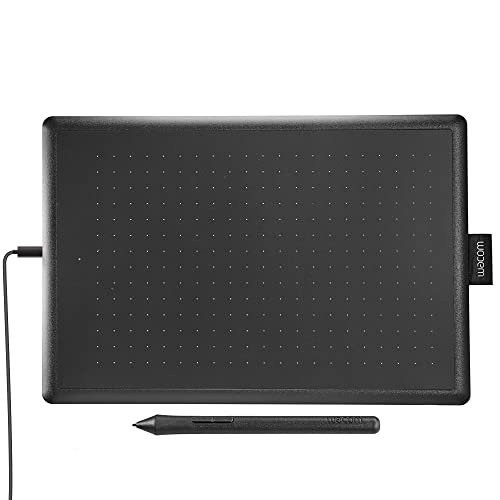
One by Wacom Drawing Tablet, Medium 10.9″ x 7.4″
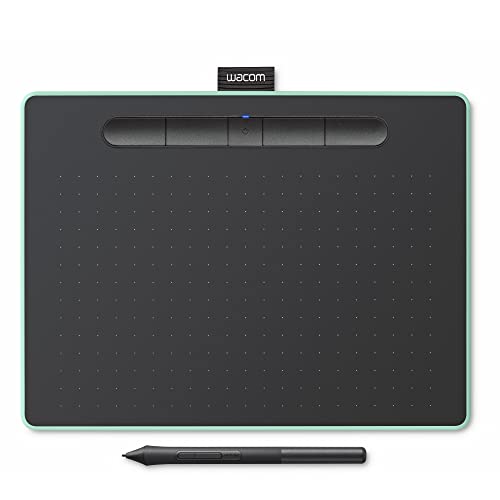
Wacom Intuos Medium Bluetooth Drawing Tablet (Pistachio)

RubensTab T14 Standalone Drawing Tablet (Frunsi)

UGEE 14.25″ 2.4K Standalone Drawing Pad
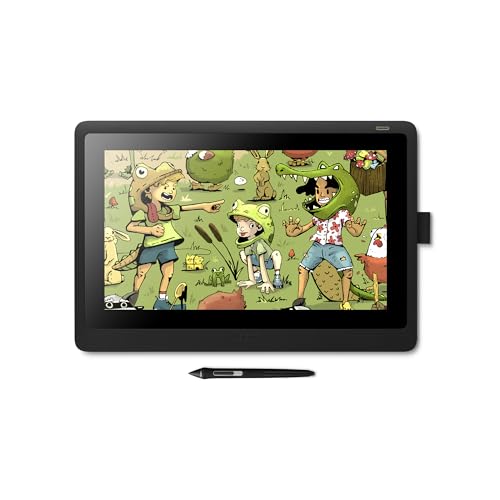
Wacom Cintiq 16 Drawing Tablet with Screen

Frunsi T8 8-Inch Standalone Drawing Tablet

Wacom Intuos Small Wired Drawing Tablet

XPPen Artist 15.6 Pro Drawing Tablet

HUION Inspiroy 2 Medium Drawing Tablet

RubensTab T11 Pro Standalone Drawing Tablet
What Each Pick Brings To The Table
The One by Wacom Medium is the tablet many people learn on, and for good reason. Its 10.9-by-7.4-inch active area gives your hand room to settle without taking over a desk, and the included pressure-sensitive pen (a stylus that responds to how hard you press, producing thicker or thinner lines) tracks cleanly across the surface.
Plug it into a Chromebook, Mac, or Windows laptop and it shows up as a drawing input the moment you open a compatible app. Students taking notes in class, hobbyists dabbling in digital art, and parents buying a first creative tool for a teenager will find this slot-in-and-start workflow refreshing. It’s the most “just draw” experience in this lineup, which is exactly its appeal.
Key Advantages
- Compact 10.9 x 7.4-inch footprint fits any desk or laptop bag
- Pressure-sensitive pen reads line weight accurately for sketching basics
- Broad compatibility with Chromebook, macOS, and Windows out of the box
- Durable Wacom build that holds up well to daily student or home use
Things To Consider
- Requires a connected computer, so it won’t travel as a standalone studio
- The pen runs on a single replaceable battery that owners commonly replace every few months under heavy use
- No screen means there’s a learning curve between eye and hand for beginners
Key Specs
Who It Suits Best
First-time digital sketchers and students who already own a laptop and want the smoothest possible learning curve.
Where Another Pick Suits Better
The Wacom Cintiq 16 is the right call for working illustrators who need to draw directly on a screen.
The Intuos Medium steps up from the One by adding Bluetooth, which quietly changes how you work. You can sketch across the couch, the kitchen table, or a lecture hall without a tether to your computer. The pistachio finish is a small thing, but it makes the tablet feel less like office equipment.
Four customizable ExpressKeys (physical buttons on the tablet that you can assign to shortcuts like undo or brush size) sit along the side, mapping to undo, brush swap, or whatever your app supports. Teachers running demonstrations, students who want a clean desk setup, and creators working between devices will appreciate how quickly this one moves between rooms.
Useful Touches
- Bluetooth pairing means a genuinely wireless drawing experience
- Four ExpressKeys can be mapped to time-saving shortcuts in most apps
- Pen requires no charging and never needs a battery swap
- USB-A cable included as a backup when Bluetooth isn’t available
Worth Noting
- Bluetooth pairing can occasionally drop, depending on the host computer
- You may find the medium active area tighter than expected for full-arm gestures
- Like the One, this is a screen-less tablet that needs a host computer
Made For
Creators and educators who want a clean, wire-free desk setup without giving up Wacom reliability.
Swap It Out When
The RubensTab T14 is the better fit for anyone who wants to sketch without being tethered to a computer at all.
Where the previous two Wacom tablets needed a host computer, the RubensTab T14 cuts that cord entirely. It runs its own octa-core processor (a chip with eight processing cores that handles multitasking and demanding apps smoothly), boots into Android, and opens drawing apps the moment you power it on. You draw on the 14.1-inch Full HD display (1920×1200 resolution), so what your hand does is what your eye sees.
Pre-installed apps and tutorials make the first session less intimidating, which matters for beginners. The included bonus items bundle a stylus and a handful of extras. Artists who want to sketch on a train, students without a consistent laptop, and parents looking for a single device their kid can use anywhere will find this format genuinely liberating.
What Makes Sense
- No computer needed, so the tablet works anywhere there’s a flat surface
- 14.1-inch Full HD screen gives you real room to see your strokes
- Octa-core processor handles layered artwork without bogging down
- Pre-installed apps and tutorials shorten the learning curve for newcomers
Honest Caveats
- The Android app ecosystem for art is smaller than the desktop ecosystem
- Battery life under heavy drawing sessions may call for a midday top-up
- Software updates beyond the initial setup depend on the manufacturer’s release cadence
Feature Snapshot
Best Suited To
Traveling artists, students, and beginners who want a single device that opens, sketches, and saves without extra setup.
Not Your Match When
The Wacom Cintiq 16 makes more sense for pros already committed to desktop software like Photoshop or Clip Studio Paint.
The UGEE tablet is what happens when a standalone sketchpad gets serious about screen quality. The 14.25-inch 2.4K panel (a screen with roughly 2400 horizontal pixels, noticeably sharper than Full HD) and the paper-like NanoMatte surface (a textured coating designed to mimic the slight friction of pencil on paper) make long sketching sessions feel closer to traditional media.
It’s running a 6nm octa-core chip (a processor built on a 6-nanometer manufacturing process, generally meaning better efficiency and speed than older designs) with Android 14, backed by 8GB of RAM and 256GB of storage, so large brush libraries and layered files don’t bog things down. The 10,000mAh battery with 27W fast charging gets you through long days away from a wall outlet. A U-Key shortcut switches between regular, ink-paper, and color-paper display modes, which is a thoughtful touch for different kinds of work.
Where It Excels
- 2.4K resolution on a 14.25-inch panel shows fine detail without pixelation
- Paper-like matte finish reduces glare and adds natural pen resistance
- 10,000mAh battery with fast charging supports full-day sketching sessions
- 8GB RAM and 256GB storage handle large art files and brush packs with room to spare
Trade Offs
- The premium hardware commands a higher price than entry-level standalone tablets
- Some niche desktop apps still aren’t available on Android
- Battery longevity depends on screen brightness and app intensity over time
Right Fit For
Digital painters who want a faithful drawing surface and don’t want to drag a laptop around.
Look Elsewhere When
The Frunsi T8 is a friendlier choice for anyone sketching casually on a tighter budget.
The Cintiq 16 is the workhorse most professional illustrators grew up using, and it still earns its place on a desk. The 15.4-inch Full HD display sits flat on foldable legs, letting you angle the screen like a drafting table, while the Pro Pen 2 recognizes tilt (the angle at which you hold the stylus) for natural-looking shading on brush strokes.
This is a tethered tablet, so you pair it with a Mac or PC, and that tether is the trade-off for pro-grade accuracy. At roughly four pounds and an inch thick, it lives happily on a studio desk. Illustrators, animators, and designers who need exacting pen response on a screen and don’t mind the chair-and-desk setup will get years of reliable work out of it.
Why It Works Well
- Pro Pen 2 tilt support produces natural-looking shading on brush strokes
- 15.4-inch Full HD display gives you a clear view of fine line work
- Foldable legs adjust the screen like a drafting table for long sessions
- Scratch-resistant exterior holds up to daily studio use
Things To Consider
- Tethered design means it stays on your desk and travels poorly
- Requires a host computer running full creative software
- Screen brightness and color may benefit from calibration for print work
Who Will Love This
Working illustrators, animators, and design students who need pro-level accuracy on a screen they can angle.
Reach For A Different Pick When
The UGEE 2.4K standalone is the smarter grab for someone who needs a real screen without being anchored to a computer.
The T8 is the most affordable way into a standalone sketchpad. The 8-inch form factor (small enough to cradle in one hand) is closer to a paperback novel than a desktop monitor, but the Android 13 operating system and 1200×800 resolution are enough for quick studies, comics thumbnails, and daily doodle habits.
There’s no host computer to drag around, which is the whole point. The smaller screen will feel cramped for full-page work, but for warm-up sketches and on-the-go ideas, the T8 punches well above its size. Casual hobbyists, kids exploring digital art, and anyone wanting a dedicated drawing device without a major outlay should give it a serious look.
The Good Stuff
- Most affordable standalone option in this roundup
- Compact 8-inch body fits in a backpack and weighs almost nothing
- Android 13 OS runs mainstream drawing apps without fuss
- No computer required means genuinely portable creative sessions
Some Limits To Know
- 8-inch screen feels tight for full-page illustrations or layered paintings
- Lower resolution than larger standalone tablets like the RubensTab T14
- Smaller battery capacity limits long sketching sessions between charges
Quick Facts
Perfect Match For
Casual sketchers, gift buyers, and anyone wanting a dedicated drawing tablet without a big commitment.
A Better Fit Elsewhere
The RubensTab T14 is the better choice for artists who want more room to spread out and more pixels to play with.
The Intuos Small is the smallest of Wacom’s traditional tablets, and it does a lot with that tiny footprint. The wired USB connection removes any Bluetooth headaches, and the included software bundle means you can install a drawing app and start working the moment the tablet shows up.
This is not the tablet for sprawling illustrations, but for note-taking, marking up screenshots, and digital signatures it punches well above its size. People with small desks, frequent travelers who want a barely-there drawing surface, and anyone using a tablet mainly for writing and annotation will appreciate how little space the Intuos Small asks for.
Strong Points
- Smallest Wacom footprint makes it disappear into any workspace
- Wired USB connection means no pairing or battery surprises
- Bundled software gets you drawing on day one
- Lightweight pen needs no charging and never drops a connection
Room For Improvement
- Active area is too small for comfortable full-arm drawing strokes
- Requires a host computer, so it won’t replace a tablet for travel sketching
- No screen means the eye-hand coordination learning curve applies
Whose Shelf It Belongs On
Note-takers, annotators, and remote workers who want a clean digital writing surface on a small desk.
Consider Something Else When
The RubensTab T11 Pro is the better pick for someone who wants a screen without needing a separate computer.
The Artist 15.6 Pro puts a full-laminated 15.6-inch screen on your desk and surrounds it with shortcuts. The full lamination means the glass and LCD are bonded tightly, reducing parallax (the visible gap between the stylus tip and the actual line on the display) so the pen feels like it’s drawing exactly where the line appears.
Tilt support, a red mechanical dial for quick adjustments, and eight customizable shortcut keys make this a real studio tool rather than a starter display. The 120% sRGB color gamut (a measure of how wide the range of colors the screen can show; higher numbers mean richer, more accurate colors) gives you accurate color for illustration and design work. This is a tethered tablet, so plan to keep it paired with a computer, but for anyone running a multi-app workflow, the controls alone save real time.
Where It Delivers
- Full-laminated display reduces parallax for accurate pen placement
- Red mechanical dial gives quick, tactile control over brush settings
- 120% sRGB color gamut supports accurate digital painting and design
- Eight customizable shortcut keys reduce keyboard trips mid-drawing
Soft Spots
- Requires a connected computer, which limits travel and setup flexibility
- Screen size demands dedicated desk space for comfortable long sessions
- Drivers may need updating when paired with newer operating systems
Who Should Grab It
Studio-based illustrators and designers who want shortcut-heavy workflows on a bonded display.
Skip It When
The Wacom Cintiq 16 is a smarter buy for someone already invested in the Wacom pen ecosystem.
HUION’s Inspiroy 2 Medium earns attention for one small feature that turns out to be huge in daily use: a physical scroll wheel on the tablet. Zoom, brush size, layer switching, whatever your hand reaches for first, the wheel handles without breaking your flow.
PenTech 3.0 (HUION’s third-generation pen technology, focused on smoother line accuracy and lower latency) drives a slimmer, softer-grip stylus with side buttons and 60-degree tilt response. Eight custom keys and the 9-by-5-inch active area hit a sweet spot for most sketching styles. Hobbyists, freelance illustrators, and students looking for a screen-less tablet with real control surfaces will find this one hard to put down.
The Value In It
- Scroll wheel saves real time by putting zoom or brush size at your fingertip
- PenTech 3.0 stylus feels accurate with minimal line lag
- 60-degree tilt support adds natural shading to brush strokes
- Slimmer pen body with silicone grip reduces hand fatigue over long sessions
Points To Keep In Mind
- PenTech 3.0 nibs tend to wear faster under heavy daily sketching
- Screen-less design still requires eye-hand adjustment for newcomers
- Tethered to a computer, so it doesn’t replace a tablet for travel
Technical Highlights
Built With In Mind
Sketchers, photo editors, and digital artists who appreciate having a scroll wheel and custom keys at their fingertips.
Another Choice May Suit
The Wacom Intuos Medium Bluetooth is the better choice for shoppers who prioritize wireless freedom over the wheel.
The RubensTab T11 Pro is the smaller sibling of the T14, and for many people it hits the sweet spot. The 10.1-inch Full HD IPS display (1920×1200) is large enough for full sketches but compact enough to fit in a messenger bag alongside a notebook and a coffee.
Like the T14, it runs Android and needs no computer. Pull it out on a train, at a cafe, or in a waiting room, and the screen lights up ready to draw. People who commute, travel for work, or just want a tidy second device will find this format keeps creativity without the bulk of a laptop setup.
What Stands Out
- Standalone Android operation means drawing sessions start instantly
- 10.1-inch Full HD IPS screen balances detail with portability
- Compact body fits easily in a bag alongside other daily gear
- IPS panel gives wide viewing angles for showing work to others
Points To Note
- 10.1-inch screen is smaller than the T14 for layered, detailed paintings
- App ecosystem is limited to what’s available on Android
- Battery size is modest compared to larger standalone tablets
Right Fit For
Commuters, traveling illustrators, and anyone who wants sketch-on-demand without a laptop.
A Better Fit Elsewhere
The Frunsi T8 is a smaller, more affordable alternative for casual use.
What Matters Most Before Choosing Android Tablets For Sketching
Standalone vs. Tethered, The First Fork in the Road
The biggest choice is whether you want a tablet that runs itself or one that plugs into a computer. Standalone options like the RubensTab T14, the UGEE 2.4K, and the T8 boot straight into a drawing app and let you sketch anywhere there’s a flat surface. Tethered tablets like the One by Wacom and the Intuos Medium need a host computer running Photoshop, Clip Studio Paint, or similar software, which gives you a much larger app ecosystem but anchors you to a chair.
For students and commuters, standalone is genuinely freeing. For working illustrators tied to specific desktop apps, tethered is still the safer choice.
Screen or No Screen, and Why It Changes Everything
Pen displays like the Wacom Cintiq 16 and the XPPen Artist 15.6 Pro let you draw where the line appears, which speeds up the eye-hand learning curve dramatically. Screen-less tablets like the Intuos Medium, the Inspiroy 2, and the One by Wacom require you to look at a monitor while your hand works on a separate surface. That disconnect takes a few days to master, but the trade-off is often a lower price and a more portable form factor.
Pressure Levels, Tilt, and Why Pen Specs Actually Matter
Pressure levels describe how many gradations of pen force the stylus can detect; more levels mean smoother transitions between light and heavy strokes. Tilt support lets the stylus recognize the angle it’s held at, which adds natural shading to brush strokes. Look for at least 4096 pressure levels and tilt support if you want brush-like realism. Most tablets in this roundup hit those marks, with higher-tier options like the Cintiq 16 and the UGEE 2.4K standing out.
Active Area, Resolution, and Real-World Usability
Active area is the size of the drawing surface, and it shapes how you move. Smaller active areas (the Wacom Intuos Small, the HUION Inspiroy 2) suit desk work and note-taking. Larger areas (the One by Wacom Medium, the RubensTab T14) let your arm move more naturally for full drawings. Display resolution matters more on standalone and pen-display tablets, where higher pixel counts mean sharper previews of your strokes.
Key Considerations Across These Picks
Where Shoppers Go Wrong
A common slip is picking a screen-less tablet expecting it to behave like an iPad, then feeling frustrated by the eye-hand gap. Another is buying a standalone tablet assuming it runs the same apps as a laptop, when the Android drawing ecosystem is more selective. Before committing, sketch out how you actually plan to use the tablet: at a desk with software, or anywhere with a battery.
Where The Extra Money Goes
Higher-tier models like the UGEE 2.4K and the Wacom Cintiq 16 spend the premium on better screens, more accurate pens, and stronger build quality. You’re paying for color accuracy, lower parallax, tilt support, and durability that survives daily studio use. For casual sketchers, the entry tier handles the job well. For working artists, the upgrade tends to pay for itself in fewer compromises per session.
Frequently Asked Questions
Do I need a computer to use an Android tablet for sketching?
Not always. Standalone tablets like the RubensTab T14, the UGEE 2.4K, and the Frunsi T8 run Android directly and don’t require a host computer. Tethered tablets like the Wacom Intuos series and the XPPen Artist 15.6 Pro need a connected Mac, PC, or Chromebook to operate.
What’s the difference between a pen display and a graphics tablet?
A graphics tablet is a screen-less drawing surface that sends input to a separate monitor, while a pen display has a built-in screen so you draw directly on the image. Pen displays shorten the learning curve but cost more and weigh more than screen-less options.
How important is pressure sensitivity?
It’s how a stylus translates how hard you press into line thickness, which is core to natural-looking sketching. Most tablets in this roundup offer at least 4096 pressure levels, with higher-end options reaching 8192 for finer control.
Can I use these tablets for photo editing?
Yes. Many of these tablets work with Lightroom, Photoshop, Affinity Photo, and similar programs, and models with shortcut keys like the HUION Inspiroy 2 and the XPPen Artist 15.6 Pro are particularly well-suited for that workflow.
Are standalone Android drawing tablets good for professionals?
They can be, depending on the apps you need. Working illustrators tied to desktop-only software should stick with tethered options, while artists using Android-friendly tools like Concepts or ibis Paint will appreciate the freedom of a standalone setup.
The Takeaway
The right Android tablet for sketching depends less on specs and more on how you actually plan to use it. Standalone tablets like the RubensTab T14 and the UGEE 2.4K free you from the desk, while tethered options like the Wacom Cintiq 16 deliver pro-grade accuracy on a real screen. Match the format to your daily routine, and the rest of the decision gets a lot easier.