
Starting digital art can feel overwhelming, especially when the gear looks expensive and unfamiliar. You don’t need a massive studio display or the most expensive brand to begin learning line, shape, and color. A friendly entry-level tablet, paired with a little patience, covers most of what new artists actually need.
This list walks through ten beginner-friendly picks, ranging from a budget glove that solves a common nuisance to full pen-display tablets that let you draw directly on screen. Each one has a clear purpose, and the notes below explain who will benefit from which option.
The Lineup, Simplified
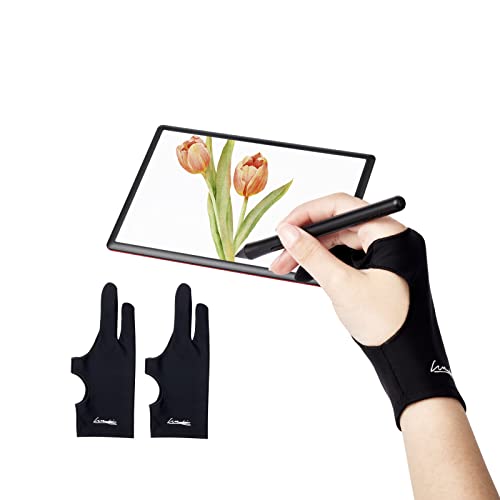
Digital Drawing Glove 2 Pack, Two-Finger Smudge Guard
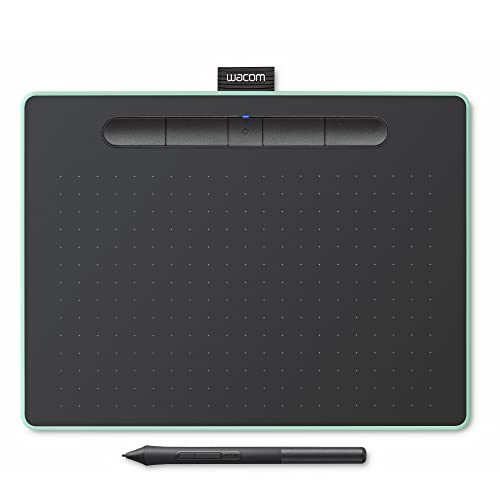
Wacom Intuos Medium Bluetooth Graphics Drawing Tablet (Pistachio)

Wacom Cintiq 16 Drawing Tablet with QHD Screen and Pro Pen 3

XPPen Artist 24 Pro 2.5K QHD Drawing Tablet with Screen, 23.8″
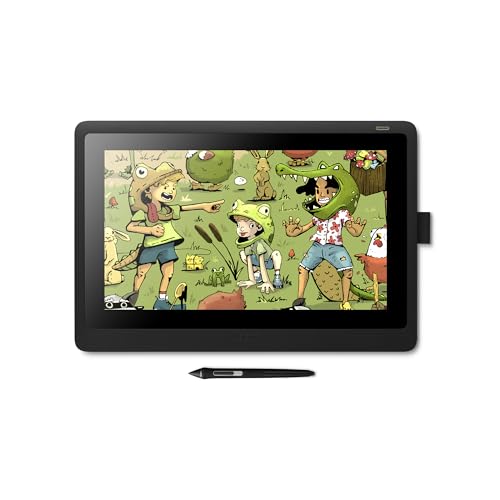
Wacom Cintiq 16 Drawing Tablet with Screen, 15.4″ Full HD Display

VEIKK VK850 8×5″ Drawing Tablet, 16384 Pressure Levels

HUION Inspiroy 2 Medium Drawing Tablet with Scroll Wheel, 9×5″

HUION KAMVAS Pro 27 4K UHD Drawing Tablet with Screen

VEIKK Studio 16 Drawing Tablet with Screen, 15.6″ Pen Display

VEIKK VK1200 V2 Drawing Tablet with Screen, 11.6″
A Deeper Look At The Lineup
Starting with the smallest item on the list, this two-finger glove solves a surprisingly annoying problem. When your palm drags across a tablet screen, natural skin oils leave smudges that interrupt your workflow. The glove covers the two fingers most likely to touch the surface, keeping the drawing area clean.
You get two gloves in the pack, so left-handed artists aren’t left out. The fabric is thin and breathable, which matters during long sketching sessions. You may find the fit a touch snug if your fingers are on the larger side.
Good Reasons To Consider
- Two-finger design keeps the screen clear without limiting your hand position.
- Includes both right and left-handed gloves in one pack.
- Breathable fabric stays comfortable across hours of sketching.
- Tiny footprint, so it travels well with a laptop and tablet combo.
Things To Consider
- The sizing may feel off for users with longer fingers.
- Doesn’t add any drawing capability on its own.
Who It Suits Best
This glove works for anyone who already owns a drawing tablet and wants cleaner sessions without constantly wiping the screen.
Look Elsewhere When
Reach for the Wacom Intuos Medium Bluetooth Graphics Drawing Tablet when you need an actual drawing surface, not just an accessory.
Wacom built its reputation on pen tablets, and the Intuos Medium Bluetooth carries that legacy into a beginner-friendly form factor. The pistachio finish stands out from typical black peripherals, and the medium active area gives you enough room for arm movement without dominating a small desk.
Four customizable ExpressKeys sit on the tablet, letting you assign shortcuts for brush, undo, or layer switching. Bluetooth pairing works with Windows, Mac, Chromebook, and many Android devices, so you’re not locked into one ecosystem. Compared to the smudge glove above, this is the first “real” drawing tool on the list.
Where It Delivers
- Pressure-sensitive pen delivers natural-feeling line variation.
- Wireless Bluetooth setup reduces cable clutter on a study desk.
- Four ExpressKeys speed up common shortcuts.
- Wide compatibility with major operating systems.
Worth Noting
- Requires looking up your specific OS driver for full shortcut support.
- Pen nibs wear down over months of daily use, so replacements are worth budgeting for.
Feature Snapshot
Made For
Students, hobbyists, and teachers who want a no-fuss introduction to pressure-sensitive drawing on a familiar brand.
Swap It Out When
Choose the VEIKK VK850 8×5″ Drawing Tablet when a tighter budget and a larger active area matter more than brand familiarity.
The Cintiq 16 is where this list steps up to a true pen display. Instead of drawing on a separate surface while watching a monitor, you sketch directly on the screen, which removes the hand-eye gap that frustrates many first-time digital artists. The 2560 by 1600 resolution keeps brushwork crisp at typical viewing distances.
The Pro Pen 3 supports 8192 pressure levels and tilt, so subtle wrist angles translate naturally into line variation. Three shortcut keys sit along the side for quick tool changes. It’s a heavier investment than the Intuos above, but the draw-on-screen workflow changes how you learn.
The Practical Payoff
- Pen-on-screen workflow mirrors traditional drawing habits.
- 8192 pressure levels capture delicate brush transitions.
- Tilt support enables shading that feels like a real pencil.
- Pen holder mounts to either side of the bezel for ergonomic access.
Trade Offs
- Heavier than a non-display tablet, so it claims more desk real estate.
- Higher learning investment may feel heavy for casual hobbyists.
Right Fit For
Aspiring illustrators who already know they want to commit to digital work and prefer drawing directly on screen.
Reach For A Different Pick When
Pick the XPPen Artist 24 Pro 2.5K QHD when you want a noticeably larger canvas and more onboard shortcut controls.
Stepping up in size, the XPPen Artist 24 Pro gives you a 23.8-inch canvas that nearly fills a typical desk monitor spot. The 2.5K QHD resolution keeps lines sharp, and the IPS panel (a screen technology known for wide, accurate viewing angles) helps when you lean to one side to sketch.
Twenty programmable shortcut keys run along the edges, which speeds up brush and layer changes during long sessions. The battery-free stylus (a pen that draws power from the tablet, so it never needs charging) supports 8192 pressure levels and tilt. Compatibility covers Windows, Mac, Chrome, and Linux.
Useful Strengths
- Large 23.8-inch surface lets you draw without constantly zooming.
- Twenty shortcut keys replace a lot of keyboard navigation.
- Anti-glare film softens overhead light reflections.
- 178-degree viewing angle keeps color consistent across positions.
Some Limits To Know
- Takes up significant desk space, so a small dorm setup may struggle.
- More cables to manage than a non-display tablet.
Spec Overview
Best Suited To
Studio illustrators and concept artists who want a large drawing surface with extensive shortcut mapping.
Consider Something Else When
Choose the Wacom Cintiq 16 Drawing Tablet with Screen when a smaller, lighter pen display fits your space better.
The earlier-model Cintiq 16 holds its ground as a dependable pen display for new artists. At roughly four pounds and about an inch thick, it folds flat or props up using the integrated legs, which helps when sketching at a tilted desk.
The included Pro Pen 2 supports tilt response, so you can angle the stylus like a charcoal pencil for shading. The 15.4-inch Full HD display sits between the compact VEIKK VK1200 V2 below and the larger XPPen Artist 24 Pro above, giving you a balanced middle option.
Notable Upsides
- Draw-on-screen workflow shortens the learning curve for traditional artists.
- Adjustable legs let you find a comfortable drawing angle.
- Tilt-enabled pen supports natural shading techniques.
- Compact enough to fit on a standard desk with a laptop.
Points To Note
- Full HD resolution is sharp but less dense than the QHD model above.
- External cabling and power brick add clutter to the setup.
Perfect Match For
Drawing-on-screen fans who want Wacom reliability without stepping up to the larger QHD Cintiq.
Where Another Pick Suits Better
Choose the VEIKK Studio 16 Drawing Tablet with Screen when you want a similar panel size at a lower entry cost.
The VK850 stands out in the budget category by giving you a noticeably larger 8 by 5 inch active area than typical entry-level pads. That extra room matters when you’re learning broad strokes and shading, since cramped surfaces force constant zooming.
The battery-free stylus claims 16384 pressure levels, which exceeds what most beginners can perceive but doesn’t hurt to have. Without a built-in screen, you draw on the pad while watching your monitor, similar to the Wacom Intuos above. It’s a familiar setup that costs less.
What Makes Sense
- Spacious 8×5″ active area gives your arm room to move.
- Battery-free pen avoids recharging interruptions.
- Pressure sensitivity handles soft sketches and bold lines alike.
Honest Caveats
- No screen means an adjustment period for first-time digital artists.
- Driver updates occasionally lag behind new OS releases.
Whose Shelf It Belongs On
First-time tablet shoppers who want generous drawing room without paying for a pen display.
Not Your Match When
Pick the HUION Inspiroy 2 Medium Drawing Tablet with Scroll Wheel when you want onboard shortcut controls and a scroll wheel for editing workflows.
The Inspiroy 2 Medium adds features you usually see on more expensive pads. A physical scroll wheel handles canvas zooming and brush sizing, which spades repetitive menu work. Eight custom keys sit along the top for assigning shortcuts you reach for constantly.
PenTech 3.0 (HUION’s pen-sensing platform) supports 60-degree tilt, and the slim stylus grip reduces hand fatigue on long days. The 9 by 5 inch surface is a touch larger than the VEIKK VK850 above, which helps when working on detailed sketches. It’s well suited to both digital painting and photo editing.
Benefits That Matter
- Scroll wheel speeds up zoom and brush changes.
- Eight programmable keys adapt to your workflow.
- 60-degree tilt support adds natural shading variation.
- Slim pen body eases long sketching sessions.
A Few Limitations
- Mapping software takes a few sessions to learn well.
- Larger footprint than compact beginner pads.
Quick Technical Notes
Built With In Mind
Photo editors and sketching hobbyists who want shortcut-heavy controls without jumping to a full pen display.
A Better Fit Elsewhere
Choose the Wacom Intuos Medium Bluetooth Graphics Drawing Tablet when you prefer a more established brand with broad OS support.
The Kamvas Pro 27 is the largest pen display on this list, with a 27-inch 4K panel that gives you serious room to work. At 3840 by 2160 resolution, fine brushwork and small UI elements stay crisp across the entire canvas, so you spend less time squinting and more time drawing.
Covering 98 percent of Adobe RGB (a wide professional color space used in print and digital publishing), the screen reproduces a broad range of tones for color-critical work. PenTech 4.0 improves the stylus feel and grip, and the no-obstructive vision design keeps your hand from blocking the drawing area. It’s an investment piece for serious learners.
Key Advantages
- 4K resolution keeps detail sharp across the full 27-inch surface.
- 98 percent Adobe RGB coverage supports accurate color work.
- PenTech 4.0 stylus offers improved grip and visibility.
- Expansive canvas reduces zoom and pan during detailed work.
Factors To Consider
- Requires a deep desk and stable setup to use comfortably.
- Cable and stand assembly are heavier than smaller pen displays.
Who Will Love This
Color-critical creators and concept artists who want maximum canvas size and accurate color reproduction.
Skip It When
Pick the Wacom Cintiq 16 Drawing Tablet with Screen when you need a lighter, smaller pen display for a compact workspace.
The Studio 16 takes a different design approach by including two styluses in the box, which helps when one runs out of battery or you prefer different nib feels. The 15.6-inch fully laminated screen (meaning the glass and display layers are bonded tightly together, which reduces the gap between pen tip and cursor) keeps your lines landing exactly where you expect.
Anti-glare glass softens overhead lighting, and an anti-fingerprint coating keeps the surface clean during long sessions. The IPS display delivers consistent color at common viewing angles. It’s a thoughtful middle ground for artists who want pen-display comfort without a premium-tier price.
Advantages To Know
- Two styluses included, which extends usability across backup scenarios.
- Full lamination tightens the gap between pen and cursor.
- Anti-glare coating eases eye strain under bright lights.
- Fingerprint-resistant surface stays cleaner during work.
Practical Considerations
- Stand is typically sold separately, so factor that into your setup.
- Driver installation requires a few restarts on some Windows machines.
The Right Fit
Note-taking artists and illustrators who want pen-display clarity and a comfortable drawing feel on a budget.
Wrong Turns To Avoid
Choose the VEIKK VK1200 V2 Drawing Tablet with Screen when you want a more compact 11.6-inch panel for travel-friendly setups.
The VK1200 V2 rounds out the list as the most compact pen display here. The 11.6-inch full-laminated screen pairs with anti-glare glass, and the IPS panel runs at 1920 by 1080 resolution, which keeps things sharp at this size.
Pressure sensitivity reaches 16384 levels, which is more than enough for beginners to experiment with line weight. The smaller footprint suits travel creators or students with limited desk space. It also works well as a second display for editing or sketching on the go.
Strong Points
- Compact 11.6-inch panel fits on small desks and in travel bags.
- Full lamination tightens the pen-to-cursor response.
- Anti-glare glass reduces reflections in bright rooms.
- High pressure sensitivity supports fine line variation.
Hidden Buying Traps
- Smaller canvas means more zooming for large illustrations.
- Cable management requires care on a cramped desk.
Feature Facts
Who Should Grab It
Small-desk creators and travelers who want a pen display that’s easy to pack and set up anywhere.
Where A Sibling Pick Shines
Pick the VEIKK Studio 16 Drawing Tablet with Screen when you want the same brand with a larger canvas for more detailed work.
What Matters Most Before Choosing Art Tablets For Beginners
Active Area Size and Drawing Comfort
The active area is the part of the tablet that actually senses your pen. Smaller pads (around 6 by 4 inches) suit quick edits and small sketches, but they force your hand into tighter movements. Mid-size pads near 8 by 5 or 9 by 5 inches give your arm room to draw the way it wants to move. You may find a cramped surface annoying after the first hour, especially when practicing long strokes.
Pen Pressure and Tilt Response
Pressure levels determine how sensitively the pen reacts to how hard you press. Anything from 4096 upward feels natural for most beginners, though the higher numbers on picks like the VEIKK VK1200 V2 or VEIKK VK850 give you finer control. Tilt support lets you angle the pen like a real pencil for shading, which matters if you want traditional drawing techniques to translate.
Display vs Non-Display Workflow
Pen displays, like the Wacom Cintiq 16 or HUION KAMVAS Pro 27, let you draw directly on screen, which feels intuitive but costs more and takes up desk space. Non-display tablets, like the Wacom Intuos or VEIKK VK850, sit flat on the desk while you watch your monitor, which feels awkward at first but trains strong hand-eye coordination over time. Both approaches work, and many professional artists still prefer the non-display style for the arm posture it encourages.
Compatibility and Connectivity
Before committing, confirm the tablet works with your computer’s operating system. Most modern options support Windows and macOS, but Chromebook and Linux support varies. Wireless Bluetooth is convenient for clean setups, while USB connections tend to be more reliable for long rendering sessions. Also check whether the stylus needs batteries, since battery-free designs like those on most picks here save you from mid-session charging interruptions.
Key Considerations Across These Picks
Pitfalls Shoppers Hit
A common mistake is buying the largest display you find, only to discover it doesn’t fit your desk. Measure your workspace before picking a pen display. Another trap is ignoring driver support for your specific operating system, which can leave shortcut keys unusable. Finally, skipping a nib replacement plan is a quiet oversight, since nibs wear down with regular use and replacements are inexpensive but necessary over months of sketching.
The Upgrade Payoff
Higher-tier tablets earn their cost through better pressure response, wider color gamuts, and sturdier build quality. A premium pen display like the HUION KAMVAS Pro 27 brings 4K clarity and 98 percent Adobe RGB coverage, which matters when your work moves toward professional illustration or print. For casual hobbyists, the jump from a budget non-display pad to a mid-tier pen display is usually the most satisfying upgrade, since it transforms the daily feel of drawing. Spend more when you know you’ll sketch weekly, and stay modest when you’re still testing the waters.