

You don’t need to spend a lot to start drawing digitally, and you definitely don’t need one gadget to cover every scenario. Cheap drawing tablets now stretch from pocket-friendly LCD doodle boards for kids to surprisingly capable pen displays that plug into a laptop. The trick is matching the tool to how you actually draw, whether that’s a Saturday afternoon sketch session, a classroom calm-down tool, or a daily digital art habit. This list sorts through ten affordable options across that whole spread so you can skip the trial-and-error and grab something that fits the way you work.
A Fast Comparison Of The Options

Zhehao 20 Pack 8.5 Inch LCD Writing Tablet Drawing Board (Pastel)

Kikapabi LCD Writing Tablet 10 Inch (Green)
MIXJOY Waterproof Protective Graphics Tablet Shoulder Bag

UGEE 14.25″ 2.4K Standalone Drawing Pad with U-Pencil

Boogie Board Basics Reusable Writing Pad with Stylus
Genialba 10-Inch Colourful LCD Writing Board (Green)

TEKFUN 15-Inch LCD Writing Tablet (White)

Wacom Intuos Small, Wired Graphic Drawing Tablet with Pen

XPPen Artist 15.6 Pro Drawing Monitor Display
Wacom Intuos Pro Small Wireless Graphics Tablet
A Breakdown Of The Leading Choices
Twenty little 8.5-inch boards in four pastel colors show up in a single box, which makes this set feel less like a gadget and more like party supplies. Each tablet runs on an LCD pressure-sensitive screen that responds to the included stylus, and a single tap clears the surface so the next kid gets a fresh page.
If you run a classroom, host cousins on holidays, or just want enough boards that nobody has to wait their turn, the bulk format is genuinely useful. Compared with the Kikapabi tablet further down the list, you trade a larger single screen for sheer quantity and a softer color palette.
Notable Gains
- Twenty tablets in one purchase removes the “mine, mine, mine” problem at family gatherings
- Pastel mix spreads across light blue, black, pink, and white, so each child can claim a favorite
- Eye-friendly LCD panel (no backlight glow) keeps long doodle sessions comfortable
- Pressure-sensitive surface means lines get thicker the harder a child presses, which teaches motor control early
- No charging cables per board to keep track of, just coin-cell batteries that last
Things To Consider
- Storing twenty loose tablets takes more bin space than a single larger board would
- Replacement styluses are easy to misplace when one box holds twenty of them
Built With In Mind
Classroom teachers, party hosts, and anyone running a multi-child household who wants a low-cost way to give every kid their own canvas.
Look Elsewhere When
The Kikapabi LCD Writing Tablet 10 Inch suits a single traveler better when you want one durable board with a lanyard rather than a stack of mini ones.
The Kikapabi’s 10-inch LCD screen gives kids noticeably more drawing room than the smaller Zhehao boards above, and the ABS plastic shell with anti-fall construction is the sort of detail parents quietly appreciate. A magnetic slot on the side holds the stylus in place, and the stretchy lanyard adds a car-seat-friendly carry option.
For restaurant waits, road trips, or a quiet activity at grandma’s house, the larger canvas and tether make this one easier to live with day-to-day. Versus the single-tablet Boogie Board Basics later in the list, the Kikapabi trades Boogie’s one-touch clear for a slightly chunkier body.
Noteworthy Benefits
- 10-inch colorful LCD screen offers more canvas than most toy tablets in this price range
- ABS shell with anti-fall and waterproof design survives typical kid handling
- Magnetic stylus storage keeps the pen from vanishing into couch cushions
- Lanyard lets the tablet hang from a backpack or stroller for hands-free carry
- Erase button clears the whole screen quickly so kids can start fresh without waiting
Honest Caveats
- Heavier than 8.5-inch boards, so younger kids may want two hands for long sessions
- Only ships in green from this listing, which matters if you’re matching a theme
Quick Facts
Whose Shelf It Belongs On
Parents of kids aged roughly 3 to 10 who want a single go-anywhere doodle board for car rides, restaurant trips, and homework scratch work.
Reach For A Different Pick When
The TEKFUN 15-Inch LCD Writing Tablet makes more sense for older kids who want closer to a full whiteboard-style surface at home.
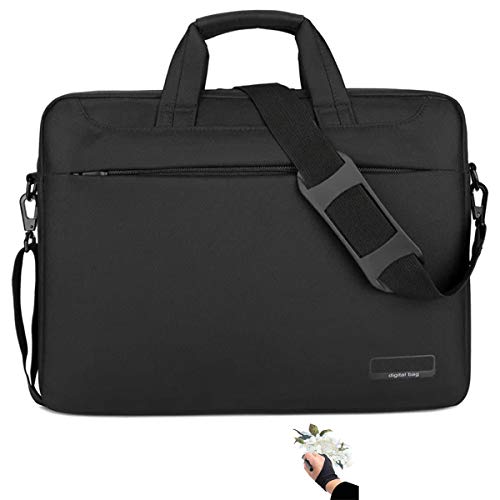
This isn’t a drawing tablet at all, but it shows up in the same shopping category because so many pen-display owners ruin theirs in transit. The MIXJOY shoulder bag fits three common 15.6-inch displays (the Wacom Cintiq 16, Huion Kamvas Pro 16, and XP-Pen Artist 15.6 Pro) plus the Innovator 16, with internal dimensions around 16.93 by 12.6 by 3.15 inches.
If you commute with your display or take it to a coworking space, a padded carry case is one of those boring buys you’ll be grateful for later. The water-resistant nylon exterior handles unexpected weather, which matters more than you’d think when you’re juggling a laptop bag and an umbrella.
Useful Highlights
- Custom-sized interior fits three popular 15.6-inch pen displays with room for cables
- Water-resistant nylon shell fends off light rain and accidental coffee splashes
- Shoulder strap configuration leaves your hands free for a laptop bag
- Internal padding reduces the chance of screen cracks when the bag gets knocked around
Practical Considerations
- Won’t fit larger Cintiq Pro 16 or wider 22-inch pen displays, so check your model first
- No dedicated stylus pouch, so the pen lives loose in the main compartment
Technical Reference
Made For
Owners of Wacom Cintiq 16, Huion Kamvas Pro 16, XP-Pen Artist 15.6 Pro, or Innovator 16 displays who travel to studios, classrooms, or coworking spaces.
A Better Fit Elsewhere
Skip this if you only draw at a fixed desk, because the Wacom Intuos Small covered later in this list doesn’t need a protective travel case at all.
Most cheap drawing tablets plug into a laptop, but the UGEE tablet skips that requirement entirely. It runs Android 14 on a 6nm octa-core processor with 8GB of RAM and 256GB of storage, and a 2.4K display sits on top with a paper-like NanoMatte finish that resists glare.
The 10,000mAh battery with 27W fast charging means you can sketch on a park bench without hunting for an outlet, and the bundled U-Pencil supports tilt for natural shading. Compared with the XPPen Artist 15.6 Pro further down, the UGEE trades a slightly smaller screen for genuine standalone freedom.
Positive Points
- True standalone design means no laptop tether, which is rare at this price point
- 2.4K resolution on a NanoMatte paper-feel surface reduces glare during outdoor sketching
- 10,000mAh battery with 27W charging keeps long sessions away from wall outlets
- 256GB internal storage holds thousands of layered PSD files without a memory card
- Dedicated U-Key cycles between ink, color, and paper-style background modes for different sketching needs
Where It May Fall Short
- 14.25-inch screen sits between compact and full-size, so users used to 13-inch laptops may want to verify desk space first
- Android app ecosystem for drawing varies in pressure support across third-party software
Core Details
Best Suited To
Digital artists, students, and casual gamers who want one tablet that travels without needing a laptop or phone to drive it.
Swap It Out When
The XPPen Artist 15.6 Pro makes more sense if your workflow depends on desktop software like full Photoshop and you don’t mind tethering to a computer.
The Boogie Board Basics has been around long enough that “Boogie Board” has almost become a generic term for an LCD writing tablet. Its whole point is simplicity: you draw with the included stylus (or honestly, a fingernail or pen cap), press one button, and the screen blanks itself instantly.
For jotting a grocery list on the fridge or sketching a quick diagram on a desk, that one-button workflow is the feature that earns it a permanent spot in your kitchen drawer. Unlike the LCD doodle boards made for kids, this one looks neutral enough to leave out where adults actually work.
What Makes Sense
- One-touch Quick Clear button wipes the screen faster than swiping an erase slider
- Adult-friendly design fits on a desk or fridge without looking like a toy
- Accepts any pointed object, so a lost stylus never halts your work
- No charging required, with weeks of use on a single coin-cell battery in typical conditions
Worth Bearing In Mind
- No pressure sensitivity, so all lines carry the same weight regardless of how hard you press
- No color, only grayscale LCD, which limits it for true artistic sketching
Feature Card
Right Fit For
Home office workers and kitchen list-writers who want a clutter-free way to capture quick notes without pulling out a phone or paper pad.
Not Your Match When
The Wacom Intuos Small is the better fit if you need real pressure-sensitive digital art with software support, since the Boogie Board has no app connectivity.
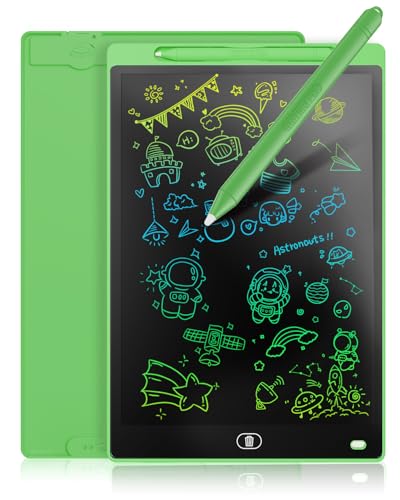
The Genialba leans into the cheerful side of the LCD tablet category, with a colorful screen background that makes doodles pop more than the typical black-on-grey look. The 10-inch canvas is comfortable for early scribblers, and the one-button erase resets the whole panel in a moment.
You might pick this over the Kikapabi if you want a slightly softer, more inviting look in green, and the eye-protection LCD screen claim matches what the other boards in this category promise. Versus the Boogie Board Basics, this one feels more like a kid’s toy, which can be a plus or a minus depending on who you are buying for.
Practical Pluses
- Colourful LCD background makes doodles feel more like drawing on tinted paper
- 10-inch size gives beginners space to experiment without feeling cramped
- One-button erase lets even toddlers reset the screen without frustration
- Lightweight construction is easy for small hands to hold during long sessions
- Eye-protection claim aligns with what parents usually look for in screen-free drawing toys
Small Limitations
- Stylus tether is a common-place-to-lose spot, so expect to buy refills eventually
- No app pairing means drawings vanish the moment you clear the screen
Perfect Match For
Kids aged 3 to 7 who are still exploring what drawing even is, and parents who want a screen-light alternative to tablets and phones.
Consider Something Else When
The TEKFUN 15-Inch LCD Writing Tablet covers older kids who want a much larger surface for spelling practice and full sentences.
Among LCD writing tablets, size matters once kids start practicing actual letters, and the TEKFUN’s 15-inch screen steps up to a whiteboard-style canvas. It holds a full sentence at standard handwriting size, which makes it useful beyond play into homework and family lists.
For a household that wants a single shared board for spelling practice, math scratch work, and quick memos, the bigger screen earns its space on the kitchen counter. Compared with the Genialba’s 10-inch panel, you trade a smaller footprint for nearly double the writing room.
Why It Works Well
- 15-inch screen handles full sentences, math problems, and small comic panels
- Screen-free LCD design cuts screen time while keeping the digital-feel convenience
- Whiteboard-style surface is intuitive for older kids transitioning to school-style practice
- One-button erase wipes the board without any setup or app sync
- Works well for parents writing grocery lists alongside kids doing homework
Some Limits To Know
- Bulkier than 8.5-inch or 10-inch tablets, so backpacks may not have room
- Single-button erase clears everything, so partial corrections aren’t possible
Key Product Details
Who Should Grab It
Families with mixed-age kids who want one board that supports both doodling time and actual school-style writing practice.
Where Another Pick Suits Better
The Boogie Board Basics is a tighter fit for adult desk use where you mostly jot quick notes and don’t need a full 15-inch surface.
Here’s where the list crosses from toy tablets into real digital art gear. The Wacom Intuos Small is a pen-only graphics tablet (no screen), which sounds old-school but is exactly how most working illustrators learned. Pressure sensitivity, a precise Wacom pen, and broad software compatibility make this the safe starting point for anyone serious about digital drawing.
If you can draw while looking at your screen rather than at your hand, the learning curve flattens quickly. Versus the Wacom Intuos Pro covered next, this model drops the wireless connection and the Pro Pen 2 to hit a friendlier entry price, while still keeping the Wacom pen experience that drew people to the brand in the first place.
Real Benefits
- Wacom pen accuracy is the reason most illustrators started with this brand
- Bundled software lets you start sketching the day the tablet arrives
- Works with Mac, PC, Chromebook, and select Android phones for flexible setups
- Compact footprint fits on a small desk beside a laptop without crowding
- Pressure-sensitive pen makes line-weight variation feel natural from day one
Trade Offs
- No built-in screen means a brief adjustment period for hand-eye coordination
- Wired USB connection tethers the tablet to your computer, limiting placement
Who It Suits Best
Beginners and hobbyists who want a legitimate drawing tablet with Wacom pen quality at a low cost, and who don’t mind drawing on a pad while watching the screen.
Skip It When
The XP-Pen Artist 15.6 Pro is a smarter match when you specifically want to draw directly on a screen and don’t want to relearn hand-eye coordination.
The XPPen Artist 15.6 Pro puts a full HD drawing surface under the pen so you sketch right on the artwork, the way you’d sketch on paper. The full-laminated screen reduces the parallax gap between pen tip and line, which matters more than spec sheets suggest until you try it.
You’ll need to connect it to a computer, but for someone studying illustration or working on commissions, that tether is a fair price for a 15.6-inch display with 8,192 pressure levels and tilt support. Compared with the Wacom Intuos Small covered just before, this is the upgrade path once you’ve outgrown drawing blind on a pad.
Features That Help
- Full-laminated 15.6-inch display brings artwork close to the pen tip for natural drawing
- 8,192 pressure levels pick up subtle pressure changes for shading and line variation
- Red roller dial speeds up brush sizing and zooming without breaking drawing flow
- Eight customizable shortcut keys put common tools a tap away
- 120% sRGB color coverage gives edits and final art a more accurate color base
Points To Note
- Requires a computer connection, so it doesn’t travel as easily as a standalone unit
- Tilt support needs app-side drivers to behave consistently across every drawing program
Made For
Illustrators, comic artists, and design students who want pen-on-screen drawing on a budget and already work in desktop software like Photoshop or Clip Studio Paint.
Look Elsewhere When
The UGEE standalone drawing pad is the better choice when you want to draw away from a desk and skip the laptop entirely.
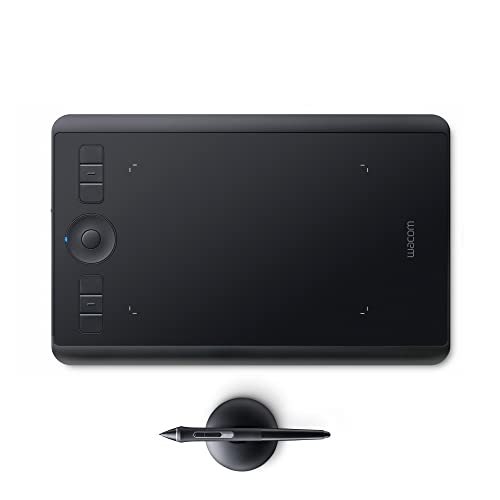
The Intuos Pro Small is what you graduate to once the entry-level Intuos starts feeling limiting. You get the Pro Pen 2 (Wacom’s best pen, with 8,192 pressure levels and tilt recognition), a wireless connection so the pad can sit wherever your arm wants, and a touch ring for zooming and brush sizing without reaching for the keyboard.
At roughly 10.6 by 6.7 inches of active area and under a pound on the scale, this is the model pro illustrators actually slip into a laptop bag. Compared with the XPPen Artist 15.6 Pro above, you trade a built-in screen for wireless portability and the Wacom pen feel that many artists swear by.
A Favorable Mix
- Pro Pen 2 offers 8,192 pressure levels with tilt support for natural shading
- Wireless connectivity frees the pad from a USB cable during long sessions
- Touch ring speeds up canvas zoom and brush sizing without keyboard shortcuts
- Sub-one-pound weight slips into a laptop bag for travel sketching
- Compact footprint fits small desks without crowding keyboard and mouse space
Details To Watch
- Premium pen tablets sit at a higher cost than the LCD boards and entry Intuos
- Pen-only design means another round of hand-eye recalibration if you’re coming from a pen display
Who Will Love This
Hobbyists and freelance illustrators ready to invest in a long-term Wacom setup and value wireless freedom over drawing on-screen.
Where Another Pick Suits Better
The XP-Pen Artist 15.6 Pro wins if drawing directly on a full-laminated screen matters more to your workflow than wireless convenience.
What Actually Matters When Picking A Cheap Drawing Tablet
Tablet type sets the entire experience, so that’s the first call. LCD writing tablets like the Zhehao, Kikapabi, Boogie Board Basics, Genialba, and TEKFUN run on a single coin battery, draw with a stylus, and clear with a button, no software, no app, no fuss. Pen tablets like the Wacom Intuos Small and Intuos Pro plug into a computer and track your pen on a surface while the artwork shows up on your monitor. Pen displays like the XPPen Artist 15.6 Pro put a screen under the pen so you draw where the line lands. Standalone pads like the UGEE run their own operating system, so no laptop is required.
Pressure sensitivity is the next spec worth caring about. Levels below 1,024 feel flat for serious art, while 2,048 to 8,192 give natural line variation, and the Wacom Pro Pen 2 and XP-Pen both sit at the high end of that range. Active area size matters for stroke comfort: a 6-inch pad forces tight hand movement, a 10-inch pad feels natural for full arm motion, and 15-inch displays approximate paper size.
Connectivity matters more than people expect. Wired USB tablets tether you to the desk, while Bluetooth models like the Intuos Pro let the pad live wherever your arm wants. Software compatibility covers most major drawing programs on Mac, PC, and Chromebook, but always confirm your specific app supports the tablet’s drivers before buying.
Points Worth Weighing Before You Commit
Wrong Turns To Avoid
Buying a pen-only tablet expecting it to feel like paper often disappoints newcomers. The fix is choosing a pen display instead, or budgeting two weeks to retrain hand-eye sync. Forgetting to check stylus replacement cost is another common slip, since lost or worn tips add up over the life of the tablet. In the LCD doodle board world, picking the cheapest 8.5-inch board for a 10-year-old usually ends in frustration, because the screen feels too small once kids start practicing real letters.
What The Higher Tier Buys
Stepping up from a $25 LCD doodle board to a $60 standalone tablet or a $200 pen display pays for pressure sensitivity, color accuracy, and software support. The Wacom Intuos Pro’s premium gets you the Pro Pen 2 and wireless freedom, which matter most once you start logging real studio hours. The honest read is that the upgrade is worth it only when you’ve confirmed the entry level actually fits your routine, otherwise you’ve just bought a more expensive paperweight.
Frequently Asked Questions
Are cheap drawing tablets good enough for beginners? Yes, the Wacom Intuos Small and the LCD writing boards in this list give beginners a low-risk way to learn the basics before committing to higher-end gear.
Do I need a computer to use a cheap drawing tablet? It depends on the type. LCD writing tablets like the Boogie Board Basics need no computer, pen tablets like the Intuos Small do, and standalone pads like the UGEE don’t.
Which cheap drawing tablet is best for kids? The Zhehao 20-pack works for shared family use, the Kikapabi 10-inch works for travel, and the TEKFUN 15-inch gives older kids more writing space for school practice.
Can I use a cheap drawing tablet for professional work? Pen displays like the XP-Pen Artist 15.6 Pro and pro pen tablets like the Wacom Intuos Pro are used by working illustrators, though most pros eventually pair them with calibrated color setups.
How long do LCD writing tablets last? With a coin-cell battery swap every few months in typical use, the LCD boards in this list commonly last several years before the screen contrast noticeably fades.
Closing Remarks
The right cheap drawing tablet depends less on the cheapest sticker and more on how you actually plan to draw. LCD doodle boards fit kitchen drawers and kid backpacks, while pen tablets and standalone pads earn their place on a real desk. Match the type to your routine, check pressure and software support, and the rest sorts itself out. Whatever your budget, there’s a tool on this list that lines up with the way you want to work.