

You want a drawing surface that doesn’t punish your wallet, whether you’re sketching on the couch, leaving a note on the fridge, or starting a digital art habit. The trick is matching the tool to the job, since “drawing tablet” now covers everything from a $10 reusable memo board to a graphics pen display meant for serious illustration. The list below sorts through the noise so you land on something useful, not a drawer full of regret.
The Main Contenders

Zhehao 20 Pack 8.5 Inch LCD Writing Tablet Drawing Board (Pastel)

Kikapabi 10 Inch LCD Writing Tablet (Green)
MIXJOY Waterproof Carrying Case for 15.6–16″ Tablets

UGEE 14.25″ 2.4K Standalone Drawing Pad with U-Pencil
Genialba 10 Inch LCD Writing Board (Green)

TEKFUN 15″ LCD Writing Tablet, Whiteboard Style (White)

Wacom Intuos Small, Wired Drawing Tablet with Pen

XP-Pen Artist 15.6 Pro Drawing Monitor (Full-Laminated)
Wacom Intuos Pro Small Wireless Drawing Tablet with Pro Pen 2

Boogie Board Basics Reusable LCD Writing Pad with Stylus
The Details Behind The Selections
Twenty small LCD boards in one box is a lot of drawing surface, and at the 8.5-inch size each one fits a kid’s lap better than a full sheet of paper. The pastel mix spreads color across the set so siblings stop fighting over who got the blue one. Compared to the single Kikapabi board further down, the value here lives in the bundle, not in any one tablet’s build quality.
For a classroom bin, a church nursery, or a birthday party, this kind of bulk pays off fast. You may find the smaller screen a bit cramped for older kids who want to draw full scenes, but for short bursts of doodling it works.
Why It Works Well
- Twenty boards split across multiple colors, so groups can share without arguments
- Compact 8.5-inch size fits small hands and backpacks
- Pressure-free LCD screen means no broken crayons or paper waste
- Lightweight enough that younger kids carry theirs without complaining
Things To Consider
- Smaller drawing area than the 10-inch LCD boards, so artwork stays simple
- Bundled boards tend to share a basic stylus, which kids lose quickly
Who It Suits Best
Parents stocking a playroom, teachers outfitting a classroom, or anyone hosting a group of kids who’d otherwise argue over a single doodle board.
Look Elsewhere When
Shoppers who only need one durable board for a single child will get more from the Kikapabi 10 Inch LCD Writing Tablet, which trades bulk for sturdier build.
This is the kind of tablet a parent tosses into a diaper bag and pulls out at a restaurant. The 10-inch screen gives a real canvas for shapes and letters, and the included lanyard keeps the stylus from disappearing into the abyss. Against the Zhehao bundle above, this one focuses on a single, more rugged board rather than twenty basic ones.
ABS plastic construction helps it survive drops, and the side magnet holds the stylus when not in use. For a child who is still learning to grip a pen, the chunky stylus and smooth screen are genuinely easier than paper.
Good Reasons To Consider
- 10-inch screen is roomy enough for letters, math, and simple drawings
- ABS body with anti-fall design holds up to rough daily use
- Stylus attaches to the side via magnet, reducing the lost-stylus problem
- One-press erase is intuitive for kids as young as three
Points To Note
- No backlight or color screen, so it looks plain in low light
- Single board means siblings still need to take turns
Made For
One young child who needs a single, durable doodle board for travel, restaurants, and quiet time at home.
Skip It When
Households that need multiple boards at once will save more per unit with the Zhehao 20-pack, which spreads the same basic tech across a full classroom set.
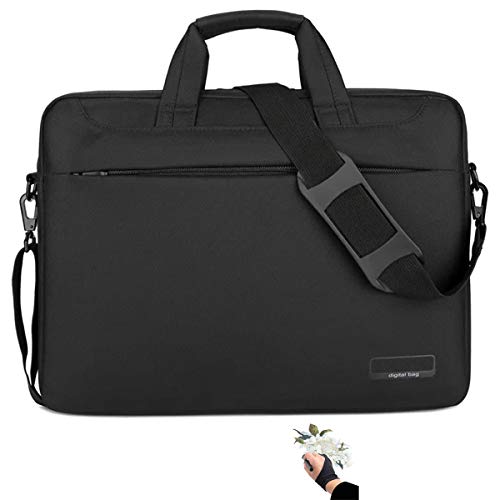
Once you buy a real pen display like the XP-Pen Artist 15.6 Pro further down, the next question is how to move it without cracking the screen. This shoulder bag was designed for exactly that pain, with internal dimensions shaped around the popular 15.6-inch and 16-inch models. The water-resistant nylon shell shrugs off spilled coffee on a café table.
It is not a tablet, but for anyone whose art setup already includes a Wacom Cintiq 16, Huion Kamvas Pro 16, or XP-Pen Innovator 16, it solves a real problem. You may find the bag itself weighs a bit empty, which adds to the total carry.
Noteworthy Benefits
- Internal dimensions tailored to the Wacom Cintiq 16, Huion Kamvas Pro 16, XP-Pen Artist 15.6 Pro, and Innovator 16
- Water-resistant nylon repels splashes and light rain
- Padded interior protects the glass surface during commutes
- Shoulder strap keeps hands free for sketchbooks or coffee
Honest Caveats
- No room for a full-size laptop alongside the tablet
- Looks like a soft briefcase, so it can blend in at professional meetings but stands out in casual settings
Best Suited To
Illustrators who already own a compatible pen display and need to carry it between home, studio, and client meetings without risking screen damage.
Swap It Out When
Anyone who works from a single desk and never moves the tablet will not need this, and the Wacom Intuos Small makes more sense for a stationary beginner setup.
The interesting move here is “no PC required.” This is a self-contained drawing tablet with Android inside, 8GB of RAM, 256GB of storage, and a 10,000mAh battery that UGEE claims keeps up with long sessions. The 14.25-inch paper-like nano-matte display is meant to feel closer to drawing on a sketchbook than on glossy glass. Among the picks here, it’s the only true standalone, since the XP-Pen and Wacom entries all need a computer.
A U-Pencil stylus comes in the box, and a physical U-Key lets you flip between regular, ink paper, and color paper modes for different looks. For a traveler who doesn’t want to lug a laptop, that’s a meaningful shift in workflow.
Key Advantages
- Standalone design means you can sketch on a park bench without a computer
- 8GB RAM and 256GB storage handle large project files locally
- Paper-like matte display reduces glare and stylus slip
- 10,000mAh battery supports extended sessions away from outlets
Worth Noting
- Heavier than a passive drawing tablet, so it works best on a lap desk or table
- App ecosystem depends on the included Android software, which may not match a full desktop workflow
Right Fit For
Mobile illustrators and comic artists who want a real drawing surface that travels without dragging along a full PC setup.
Reach For A Different Pick When
Anyone tied to professional desktop software like full Photoshop will find a more natural fit with the XP-Pen Artist 15.6 Pro, since it plugs straight into a workstation.
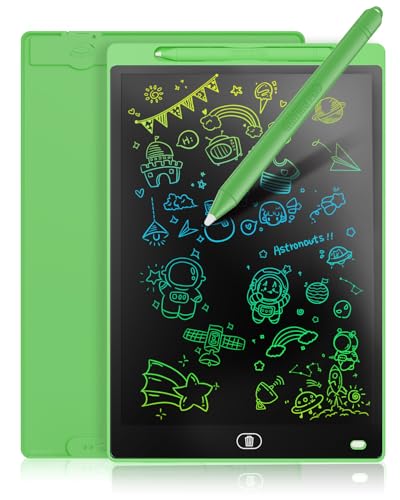
Genialba leans into the “gift” side of LCD writing tablets, with a colorful frame and a screen that pops more than the plain monochrome boards above. At 10 inches, it gives a child enough room to draw recognizable characters rather than abstract scribbles. Compared to the Kikapabi board, the Genialba prioritizes a more playful look over heavy-duty construction.
It runs on a single coin-cell-style battery that tends to last ages in casual use, and the erase button clears the whole screen in one press. For a birthday present that won’t get tossed in a corner, that colorful frame matters more than people expect.
Everyday Advantages
- Colorful frame design reads as a toy, not a tool, which appeals to younger kids
- 10-inch surface supports letters, numbers, and full drawings
- One-press erase keeps the loop short: draw, erase, draw again
Trade Offs
- Plastic shell feels lighter and less drop-resistant than the Kikapabi board
- Stylus storage is basic, so expect to replace a lost pen over time
Who Will Love This
Parents and relatives shopping for a birthday or holiday gift for a child in the early-elementary range.
A Better Fit Elsewhere
Families who need one board that survives daily travel will find the Kikapabi 10 Inch LCD Writing Tablet a tougher, more road-ready choice.
At 15 inches, this is the biggest LCD memo tablet in the roundup, and it lives in a different category than the small kid-focused boards above. Mount it on the fridge with magnets or prop it on a kitchen counter, and suddenly you have a reusable whiteboard for shopping lists, chore charts, or that one kid’s spelling practice. The screen-free nature of LCD writing also means no glare compared to a phone or tablet.
It is not a digital art tool, and TEKFUN leans into that on purpose. Older kids can use it for homework scratch work, and parents can leave quick notes without digging out a phone.
Notable Gains
- 15-inch surface is large enough for full sentences and weekly schedules
- Replaces disposable sticky notes, which adds up over a year
- Screen-free design sidesteps the usual “one more video” pull of a tablet
- Lightweight, so a single command strip or magnet holds it on a wall
Practical Considerations
- Pressure sensitivity is limited, so fine shading doesn’t translate
- Larger screen means it takes up real counter or wall space
Whose Shelf It Belongs On
Busy families who want a central, reusable note surface for grocery lists, school reminders, and quick drawings without handing a child a phone.
Where Another Pick Suits Better
Anyone who actually wants to draw art on a screen will get much more from the Wacom Intuos Small, since it interfaces with real creative software.
Wacom is the name most beginners hear first, and the small Intuos is where a lot of working artists actually started. This is a passive pen tablet, meaning you draw on the surface while looking at your monitor, which is the same muscle memory you’d build on a Cintiq. Pressure sensitivity is the real story here, since the pen reads how hard you press, and that shows up immediately in any paint program.
It’s wired, so no batteries or Bluetooth to fuss with, and it ships with creative software to get you drawing the day it arrives. Compared to the LCD kids’ boards above, the learning curve is steeper, but so is the ceiling.
A Few Highlights
- Pressure-sensitive pen gives natural line variation in apps like Photoshop and Krita
- Compact footprint fits on a small desk next to a keyboard
- Included software bundle gives beginners a real starting point
- USB connection means plug-and-play with minimal setup
Less Ideal Details
- No screen, so your eyes stay on the monitor, not the pen, which takes adjustment
- Small active area limits big arm-strokes for full-canvas painting
Built With In Mind
Beginning digital artists and hobbyists who want a real graphics tablet with name-brand drivers and software support.
Not Your Match When
Illustrators who want to draw directly on the screen should step up to the XP-Pen Artist 15.6 Pro, since pen-on-display feels more intuitive for many people.
Pen displays used to be a luxury, and the XP-Pen Artist 15.6 Pro is the model that made them genuinely affordable. It hooks up to a computer over a single cable, and the full-laminated screen means the glass sits close to the LCD underneath, which cuts down on parallax (the gap that makes your line land in the wrong spot). 8,192 pressure levels is more than most software can use, so you have headroom for years.
The red dial on the side is a thoughtful touch for zooming or rotating the canvas without taking the pen off the screen. Just be aware: this is not a standalone tablet, so you still need a PC or laptop driving it.
Strengths Worth Knowing
- 15.6-inch full-laminated display reduces parallax for more accurate lines
- 8,192 pressure levels give nuanced control for inking and painting
- Red mechanical dial and 8 shortcut keys speed up common actions
- Tilt support lets the pen behave more like a real pencil or brush
Possible Compromises
- Requires a connected computer, so it is not a grab-and-go tablet
- Glossy screen surface can show fingerprints and reflections under bright lights
Right Fit For
Illustrators and concept artists who want to draw directly on the screen and are willing to keep a computer in the loop.
Consider Something Else When
Anyone wanting to draw without booting up a PC will be happier with the UGEE 14.25″ 2.4K Standalone Drawing Pad, which runs on its own.
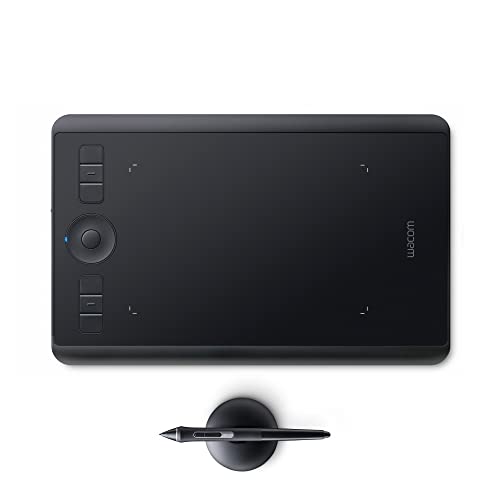
The Intuos Pro is what most working illustrators mean when they say “Wacom.” The Pro Pen 2 has near-zero parallax and tilt response, which makes shading and calligraphy feel more natural than on the entry-level Intuos. Bluetooth connectivity cuts the cable, and a touch ring on the tablet gives quick access to zoom, brush size, or rotation. The build quality is also a step up, with a textured surface that grips the pen nib slightly.
The active area sits around 7 inches diagonal, which keeps the footprint small but means big strokes still require you to lift and reposition. For a desk with limited space, that trade-off usually works in the tablet’s favor.
Strong Points
- Pro Pen 2 offers excellent pressure and tilt response for natural strokes
- Wireless Bluetooth cuts cable clutter on the desk
- Touch ring and customizable ExpressKeys speed up repetitive actions
- Slim, sub-1-pound body travels well between work setups
Where It May Fall Short
- Smaller active area than the medium or large Intuos Pro, so full-arm gestures stay limited
- Premium pricing reflects professional positioning rather than budget shopping
Made For
Working illustrators, designers, and photo editors who already know they want Wacom and need a wireless, desk-friendly setup.
Where A Sibling Pick Shines
First-time digital artists who aren’t sure they’ll stick with it will find the Wacom Intuos Small a more forgiving starting price, and the screen-based XP-Pen Artist 15.6 Pro a friendlier learning curve for those who want pen-on-display.
Feature Snapshot
The Boogie Board is the original LCD writing pad that made this whole category exist, and the Basics version is the no-frills workhorse. There is no app, no Bluetooth, no charging, just a screen, a stylus, and a single button that wipes the whole thing clean. It weighs almost nothing, which is why it lives in so many kitchen junk drawers next to the pen and the takeout menu.
The screen uses Boogie Board’s patented reflective LCD, so it needs no power to hold an image and only a coin cell to erase. For grocery lists, quick sketches, or leaving a kid something to draw on at a restaurant, it is hard to beat the simplicity.
Real Benefits
- Instant one-button erase keeps the loop short and frustration low
- Works with any scratch-free stylus, so you are not locked into one brand
- Reflective LCD needs no charging and holds an image without power
- Thin profile slides into a laptop bag or kitchen drawer
Some Limits To Know
- Stylus is a thin plastic wand that disappears into couch cushions
- No pressure sensitivity, so line weight stays flat
Who Should Grab It
Anyone who wants a low-effort, no-app note board for lists, messages, or passing around at the dinner table.
Another Choice May Suit
Kids who want a colorful, themed doodle board will enjoy the Genialba 10 Inch LCD Writing Board more, and serious artists will want to keep moving up to the Wacom Intuos Pro Small.
Key Product Details
What Matters Most Before Choosing Cheap Screen Drawing Tablets
A “drawing tablet” splits into three very different products, and confusing them leads to returns. LCD writing boards are passive, screen-bearing pads that hold an image without software, great for kids, notes, and travel. Pen tablets like the Wacom Intuos Small read pen input but show the result on your monitor, ideal for desktop creative work. Pen displays like the XP-Pen Artist 15.6 Pro combine both, so you draw on the screen itself, but they need a computer and a desk.
Think about who actually uses the tablet. Younger kids and family note-takers get the most from LCD boards because there’s nothing to install, no drivers to fight, and no app to learn. Aspiring digital artists will outgrow an LCD board in days and should jump to a pen tablet or pen display. Working illustrators usually want pressure sensitivity, pen-on-screen feel, and a name-brand driver ecosystem.
Screen size, pressure levels, and connection type round out the decision. A 15-inch LCD board lives on a wall; a 7-inch active area lives on a coffee table. Pressure levels beyond 2,048 rarely show visible gains in everyday software, so the marketing on “8,192 levels” matters less than pen feel and driver stability. Wired tablets eliminate Bluetooth quirks, while wireless adds flexibility if you swap between devices.
Finally, plan for accessories and longevity. A pen display without a case is a cracked screen waiting to happen, which is why the MIXJOY bag is on the list. A pen nib wears out over months, and most brands sell replacements, so factor the cost of a few nibs into your real budget. The cheapest tablet is rarely the cheapest tablet to own.
Key Considerations Across These Picks
Pitfalls Shoppers Hit
A common stumble is treating an LCD writing tablet as a serious art tool. The screens are passive, with no real pressure response, so they train habits that have to be unlearned on a Wacom. Another is buying a pen display without checking computer compatibility, since some older laptops can’t push enough pixels to the tablet. Finally, kids’ bundles look like a deal until you realize half the styluses are gone within a week, and replacements aren’t always included.
What The Higher Tier Buys
Moving from a Boogie Board or a Kikapabi LCD to a Wacom Intuos Pro buys you real pressure sensitivity, tilt, driver stability, and software support. Stepping from the entry Intuos to a pen display like the XP-Pen Artist 15.6 Pro adds the direct-on-screen drawing experience that many illustrators find far more intuitive. Higher tiers also tend to use better glass, more accurate color, and longer-lasting pens, so the upgrade pays off the more seriously you take the work.
Frequently Asked Questions
Are LCD writing tablets good for actual digital art? Not really, since they lack pressure sensitivity and software support, so they read more like reusable paper than a real graphics tablet. Kids and quick notes are where they shine.
Do I need a computer for a pen display? Yes, pen displays like the XP-Pen Artist 15.6 Pro require a connected computer to run creative software. The UGEE 14.25″ Standalone is the one pick in this list that runs on its own.
Is Wacom worth the higher price? For most beginners, the Wacom Intuos Small offers a reliable on-ramp, and the Intuos Pro is what many professionals stick with for years. For casual users, the price gap may not pay off.
How long do LCD writing tablets last? With typical home use, the screens tend to last years, though the coin-cell battery and replacement styluses are usually the first things to need attention.
Can kids’ drawing tablets be used by adults? Sure, especially for lists and quick sketches, though adults with serious art goals will want a pen tablet with pressure sensitivity fairly quickly.
Bottom Line
The right tablet depends on the job: LCD boards for quick notes and small hands, pen tablets for serious digital art on a budget, and pen displays for the most natural drawing feel. Pick the category that matches your real goal, and the budget will usually take care of itself.